1Password Review: Is It Actually Worth Your Money?
I could just say ‘hell to the fudge yeah’ and call it a day, but you deserve the why. So real talk, you’ve been shopping for a password manager and 1Password’s name has probably popped up a bunch of times already. It’s definitely one of the bigger players in the space, and I think there’s a good reason for that. Not gonna lie, it’s not flawless, but I use it myself so I know exactly what it does well, where it fumbles, and whether it’s actually worth your coin.
The quick verdict: solid choice if you care about security and want clean sharing options, but the lack of a free tier and a slightly fussy interface might annoy some people.
What 1Password Gets Right
Security is genuinely its strongest card. It runs on AES 256-bit encryption (the standard) along with a zero-knowledge setup, meaning 1Password itself literally can’t see what’s in your vault even if they wanted and begged for it. That’s where the Secret Key comes in: a 34-character code generated just for you that you keep safe and use every time you log in from somewhere new (and no, it’s not the same as your main password, don’t get those mixed up). So if Bob from the coffee shop somehow jotted down your password, he still can’t log into your account from his device without that Secret Key too.
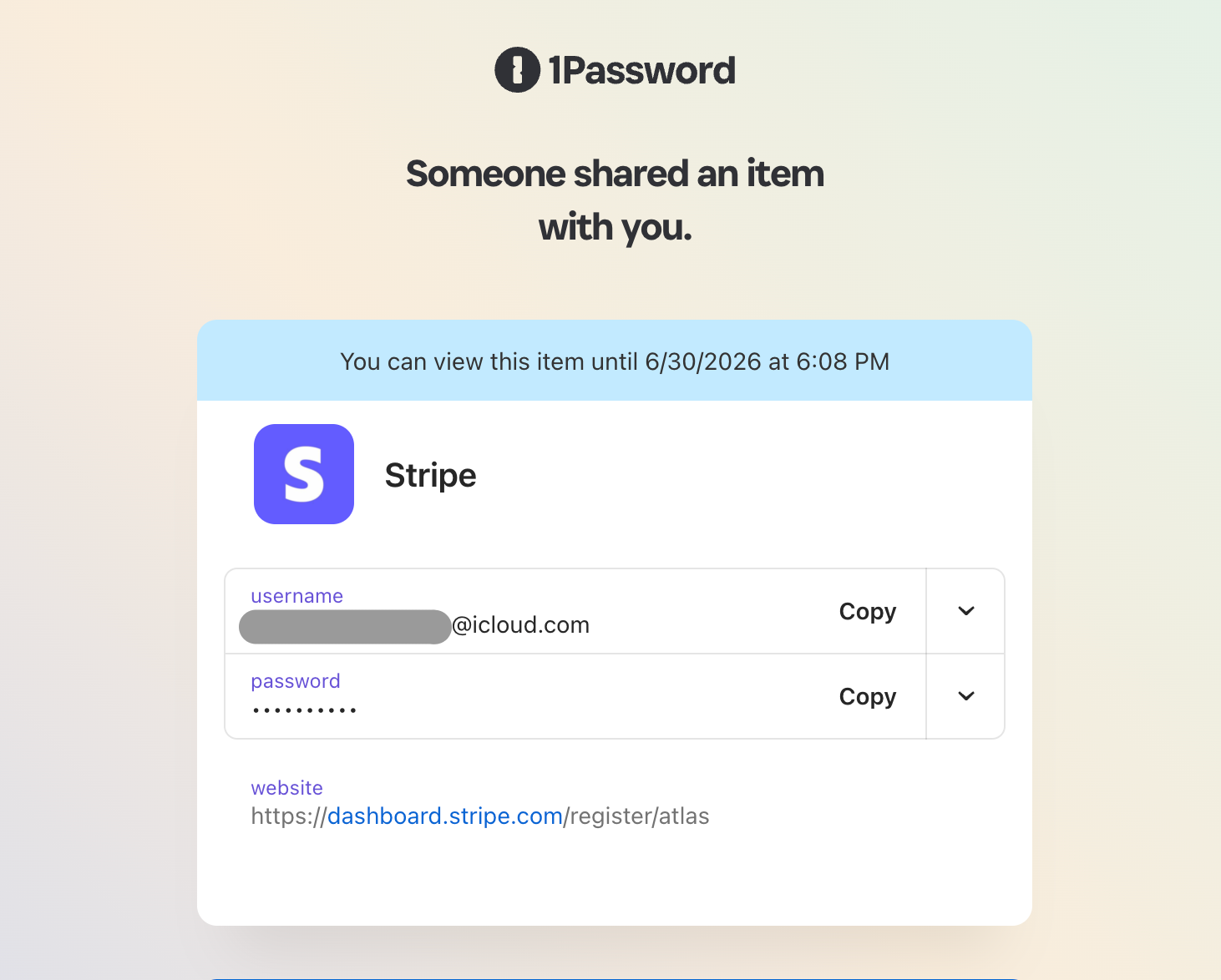
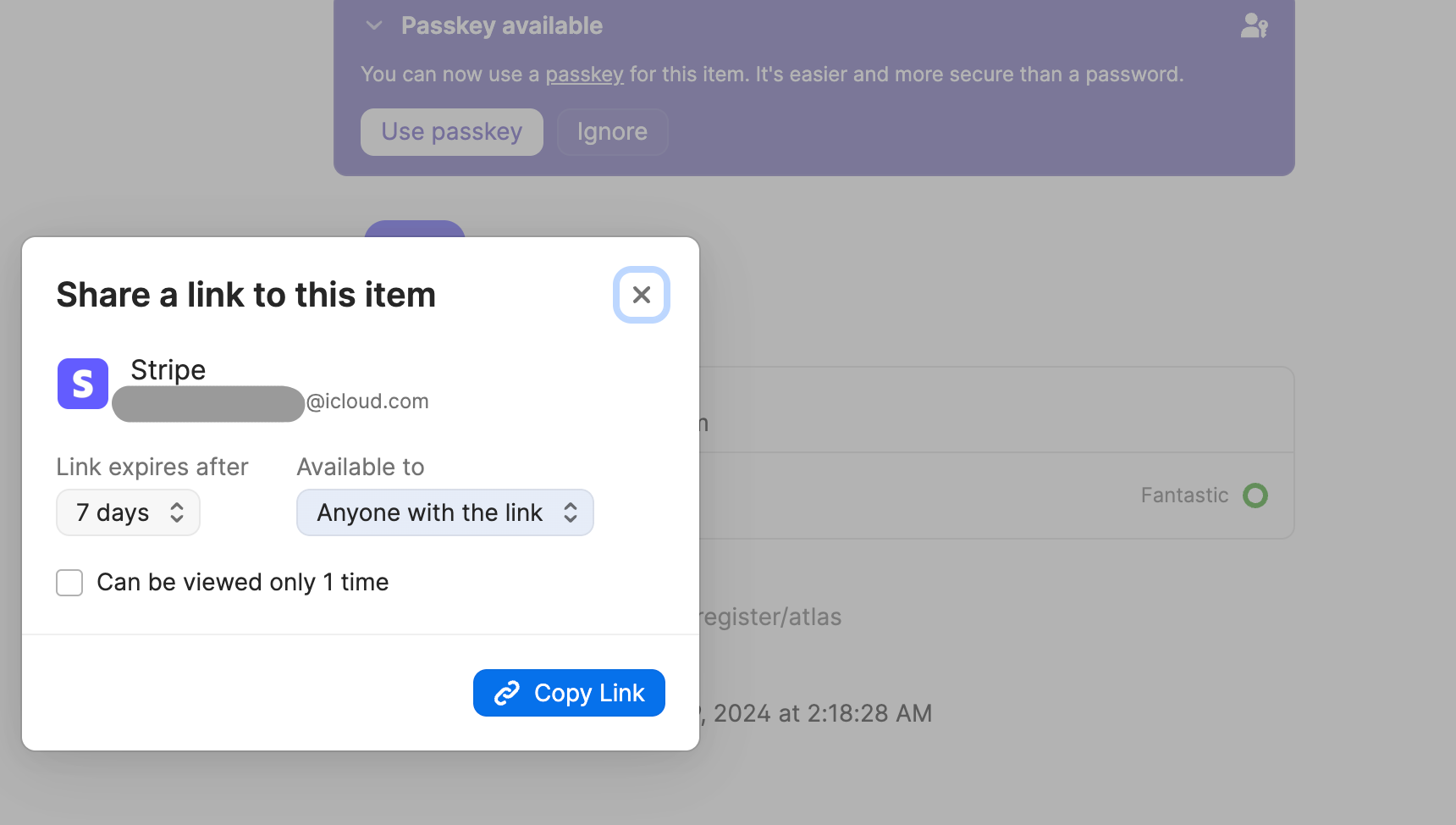
Sharing passwords doesn’t feel like a hassle. Even on the cheapest plan you can still securely share logins, and you can even send something to someone who doesn’t have a 1Password account at all. If your sister asks for your Netflix, you can simply share and put a timer before she gives it to your mother, aunty, neighbor and eventually the whole neighborhood. Not every competitor lets you do that without upselling you into a team plan.
Where It Falls Short
That Secret Key cuts both ways. Extra security is great until you’re the one fumbling to find it on a new laptop. It adds friction that some users (myself included) found a little annoying in practice. 1password themselves suggest we print the Security Key to ensure you can always access your vaults if you lose your devices or something crazy happens. (Just don’t do things like the crypto bros, put that info somewhere safe.)
No free plan, and a stingy trial. You get 14 days to test it out, which is half what some competitors offer. If you’re someone who likes to really kick the tires before committing your money, this is a good offer. However, sadly, they don’t have a free plan.
Support could be better. It’s email-only, all day every day, but there’s no live chat option. If something breaks at 2am and you need a quick answer, you’re stuck waiting on a reply.
Form filling is hit or miss. Basic username and password autofill works fine, but anything more complex like shipping addresses or card details tends to drop a field here and there. State fields and expiration dates seem to be the usual culprits.
Pricing Breakdown
| Plan | Price | Best For |
|---|---|---|
| Individual | $2.99/mo (billed annually) | Solo users |
| Family | $4.49/mo for 5 people | Families, +$1.39 per extra member |
| Team | $24.95/mo for up to 10 users | Small teams |
| Business | $8.99/user/mo | Growing companies |
| Enterprise | Custom quote | Big orgs needing dedicated support |
All plans get the same 14-day trial, unlimited password storage, 2FA, and AES 256-bit encryption. The jump from Family to Business adds SSO and bigger storage allowances, plus more serious admin and reporting tools. However, yes like most software business models, it’s cheaper when you pay annually.
Two-Factor Authentication
1Password supports authenticator apps like Microsoft authenticator, authy or Google Authenticator, physical security keys via FIDO2/WebAuthn, and of course the backup codes if you get locked out.
Who Should Actually Get This
It’s a solid pick for security-first individuals, for families who want business-tier features for way less and small to mid-size businesses that need to share tech tools/accounts.
All in all, a password manager is supposed to make your life easier, so it’s up to you.